
Blog / How-to

How To Connect a Phone to Ford SYNC

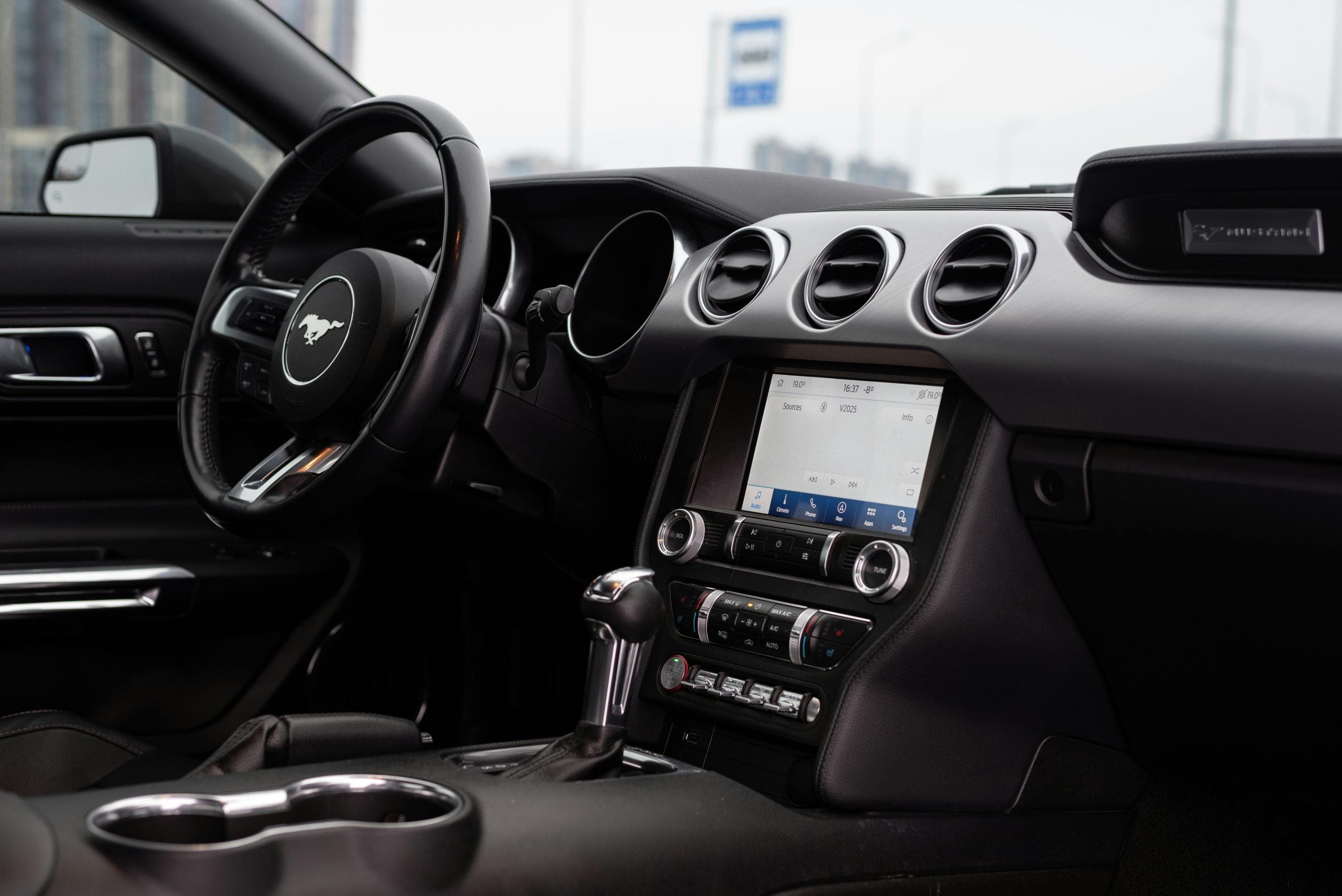
Interior of a Ford Mustang Sports Car

Ford SYNC technology will transform the way you communicate with your car. It works by connecting your phone or other mobile device to your vehicle via the USB port or through Bluetooth wireless technology. Once connected, you'll have access to a variety of apps and features through the convenience of your car's controls. This innovative technology can revolutionize the way you drive, but to reach its full potential, you have to be able to use it.

At John Kennedy Ford Feasterville, Pennsylvania, we'll walk you through the process of connecting to your Ford SYNC system. The process is straightforward, and when you've done it once, you're sure to remember how to connect on every trip thereafter. 

Ultimate Guide to Connecting Your Phone to Ford SYNC for Music Playback

If you're interested in buying a new or used Ford vehicle, you're in luck. All new Ford vehicles, including many used cars, use Ford SYNC technology. While playing music is certainly one of the benefits of connecting to Ford SYNC, there are many reasons why you'll want to take the time to explore this feature when you purchase your next Ford.

Why Connect Your Phone to Ford SYNC? Benefits and Features

By connecting to Ford SYNC, you immediately gain access to an impressive list of features. One of the most-used features is hands-free calling. Many state laws prohibit the use of hand-held devices while driving, making hands-free connectivity more important than ever. Make phone calls, send text messages, and listen to conversations over your car's speakers while connecting to SYNC. 

Another key feature of Ford SYNC is allowing you to access your phone or mobile device's navigation system over the infotainment screen. Your directions, traffic updates, and more will be displayed on your car's screen, enabling you to keep your eyes on the road while navigating to your destination.

 Connecting to SYNC technology will allow you to access and control a variety of apps while driving. For example, you can use audio controls to switch from listening to FM radio to satellite. If your car is equipped with Apple CarPlay or Android Auto, the SYNC system will allow you to use voice controls to access apps on your phone as well, including music streaming or shopping apps.

Preparing Your Devices for Connection

Before you start your Ford SYNC setup, you'll want to make sure to take a couple of steps to ensure the connection goes smoothly. Here are a few tips to make sure you're able to connect with ease.

Ensuring Your Ford SYNC Is Updated

If you've just purchased your vehicle or if you've had it for a while but haven't connected your phone to Ford SYNC lately, the first thing you'll want to do is ensure the Ford SYNC technology is up to date. If you're unsure about the status of your system, you can enter your vehicle identification number, or VIN, on Ford's website, which will let you know if your system is due for an update. 

If your vehicle's system needs to be updated, you can use your infotainment touch screen to go to the "Settings" area. Ensure that "Automatic updates" is turned on. Click "Scan for updates," and your vehicle will connect over the airwaves to search for the updated file. For a faster option, you can download the updated file to a USB drive on your computer from the Ford website and then insert the USB drive into your car's USB port to transfer the file.

Checking Bluetooth Compatibility on Your Phone

Ford Bluetooth connection is a necessary component of SYNC technology, so you need to make sure your phone or other mobile device has Bluetooth capabilities. For most devices, this information can be found under the "Settings" section. Ensure Bluetooth is turned on before attempting to connect to SYNC.

Preparing Essentials Before You Start: USB Cable and Connectivity

While Bluetooth technology is included in the SYNC system, it's useful to have a USB cable because many car models use it to connect to Apple CarPlay and Android Auto, as well as charge your phone. 

Step-By-Step Process To Connect Your Phone to Ford SYNC

To enjoy features such as hands-free calling, navigation, and music while driving, connect your phone to your car's audio system by following these steps:

  1. Turn on your phone or mobile device and ensure Bluetooth is switched on.
  2. Start your car's engine and shift into park mode.
  3. Touch "Phone" on your infotainment touch screen, and touch "Add phone." This displays a unique PIN, making the SYNC system discoverable on your device.
  4. Open the Bluetooth settings on your phone and find SYNC. 
  5. Select "SYNC," and a message will pop up displaying the PIN. Some phones might ask you to enter the PIN manually.
  6. Click "Pair" on your phone and touch "Yes" on your vehicle's touch screen to confirm that the PINs match.
  7. Check that "Pairing successful" displays on your vehicle's infotainment screen to show your phone has connected.

After pairing your phone to your vehicle, you can use SYNC to tell it what music to play. You can specify an artist, song, playlist, or genre you want to hear and also access music streaming apps such as Spotify or Apple Music.

Get Connected With Ford SYNC Today

Connecting to Ford SYNC is easier than ever, and once connected, you'll be on your way to enjoying hands-free listening on your next journey. If you have any questions about Ford SYNC, including which Ford vehicles have it, or if you need help connecting your phone, don't hesitate to reach out and contact us at John Kennedy Ford Feasterville, Pennsylvania, today.
Posted in:

Related Posts

pexels-introspectivedsgn-16094585

Lost Your Ford Admin Key? Here's How to Disable MyKey

Ford's MyKey system is a useful feature for parents who want to set ground rules for young drivers. It lets you limit the top speed, audio volume, and even certain in-car functions to help promote safer driving. For example, MyKey can mute the radio until everyone has their seatbelts on or automatically activate “Do Not Disturb” mode for a connected phone. MyKey is useful for managing your car settings, but losing the admin key can be a pain. Without it, you're stuck with whatever limits were set, which can be annoying if you're the main driver. In this guide, our team at John Kennedy Ford Feasterville will show you how MyKey works, the difficulties of turning it off without the admin key, and what you can do to get back full control of your Ford. more Contact Us Schedule Service Understanding Admin Key and Ford MyKey Systems At first glance, all your Ford keys might look the same, but they don't function the same way. The admin key is the master key that gives you full control over your vehicle's settings, including the ability to create or remove MyKey restrictions. On the other hand, a MyKey comes with specific limitations, making it ideal for younger drivers or anyone you want to teach safer driving habits. MyKey activates important safety features every time you use it, but you can only change those settings with the admin key. Losing the admin key can be frustrating because you'll have to deal with the preset limits until you figure out a way around it. What the Admin Key Does The admin key is your ticket to changing MyKey settings. With it, you can: Create and manage MyKey profiles Customize rules for other drivers Change or remove MyKey restrictions Block MyKey users from accessing the setup menu and changing settings Restore the vehicle to its full capabilities Switch a MyKey back to a regular key when you need to Without the admin key, adjusting MyKey settings gets tricky. But if you do lose your admin key, there are still ways to get back control of your vehicle. Let's check out your options. How To Disable Ford MyKey If you have the admin key, turning off your Ford's MyKey is easy. You can do it either through the SYNC display screen or the driver's information display. Both methods only take a few steps, but they do require the admin key. Using the SYNC Display Screen (If You Have the Admin Key) This is one of the quickest ways to clear your MyKey's settings: Start your vehicle with the admin key. Go to the SYNC menu and tap on “Settings.” Select “Vehicle,” then tap “MyKey.” Follow the on-screen instructions to clear the MyKey settings. Check for a confirmation message that should pop up once it's done. Turn off your vehicle to save the changes. With that, your MyKey settings are erased, and all keys regain full functionality. Using the Driver's Information Display (If You Have the Admin Key) If your car doesn't have a SYNC touch screen or you prefer using the buttons on your steering wheel, you can disable MyKey through the dashboard menu. Here's how: Start your car with the admin key. Use the right arrow button on the steering wheel to open “Settings.” Scroll to “Vehicle Settings” and select “MyKey.” Choose “Clear MyKey” from the menu. Press and hold the OK button until you see a confirmation message. Turn off the vehicle to finalize the reset. And just like that, MyKey's restrictions are gone. Both methods are simple as long as you have the admin key. But if you don't, things get trickier. In the next section, we'll look at what you can do if you're stuck without one. How To Turn Off MyKey Ford Without the Admin Key Losing your Ford's admin key can be annoying, especially if MyKey is making it hard for you to drive your Ford the way you want. Ford doesn't officially allow you to remove MyKey without the admin key, but there are a couple of ways around it. Here's how to reset Ford MyKey without the admin key. Using Remote Start To Get Past MyKey If your Ford has remote start, you can use it to bypass MyKey for a while: Start the Ford with the remote, but don't open any doors or change gears. Go to the SYNC screen or driver's display while the engine is running and try clearing the MyKey settings. Check if you're successful and the restricted key has become an admin key. That being said, this workaround is not officially recognized by Ford and should be attempted at your own risk. Dealerships will not be responsible for any issues that may arise. Masking the MyKey RFID Code This trick makes your car think the restricted key isn't present: Wrap the MyKey in aluminum foil or move it 20 feet away. Open and close the door to get a “No Key Detected” message. Unwrap your key and hold it close to the transponder reader, which is usually on the steering column. Turn off the ignition, then turn it back on, and see if you can reset your MyKey. If that doesn't work, you can reset the Passive Antitheft System (PATS) to clear all MyKey settings. You need two working keys and some programming tools for PATS, which you can get from a dealership or locksmith. This hack will reset everything and remove any limits. Another way to disable MyKey is through the instrument panel. Some car models allow you to change MyKey settings this way. Just go to “Vehicle Settings,” select “MyKey,” and turn off any restrictions you see. It might not get rid of everything, but it can help lessen limits such as chimes. Fix Your Admin Key at John Kennedy Ford Feasterville Dealing with your Ford's MyKey restrictions can be a hassle, but these tricks might help you regain control. If you're still stuck, John Kennedy Ford Feasterville has your back. Stop by our service center or schedule an appointment. While you're here, you can check out our latest Ford lineup.

garage opening machine

How To Program Ford Garage Door Opener

Unlock the convenience of integrating your garage door opener with your Ford vehicle using this step-by-step guide. The Ford HomeLink system simplifies your daily routines, allowing you to control your garage door, gate, and even home lighting systems directly from your vehicle. This comprehensive guide provides everything you need to know about programming your Ford garage door opener, whether you're setting it up for the first time or troubleshooting. Our John Kennedy Ford team is here to help you enhance your vehicle's usability and save time when accessing your home or other secured spaces in Feasterville. more Mobile Service Schedule Service Contact Us Preparing To Program Your Ford Garage Door Opener Preparing for the programming process before beginning is essential, as gathering the necessary tools and understanding the steps can save you time and frustration. Here's what you need to get started: Your garage door remote control: Ensure its battery is fully charged to avoid weak signal issues. Access to the garage door opener motor: This typically involves pressing a "Learn" or "Smart" button on the motor for rolling code systems. Your Ford owner's manual: Your owner's manual offers model-specific guidance if needed. Key Preparations Position your Ford within range of the garage door opener, then follow these steps: Turn on the vehicle's ignition, but don't start the engine. Locate the HomeLink buttons in your Ford, typically on the overhead console or sun visor. These buttons will be used to program the system. Confirm your garage door opener is compatible with the HomeLink system. Most modern openers work seamlessly, but older systems may require adapters. Ensuring these preparations are complete minimizes frustration and guarantees a smoother programming process. Step-By-Step Guide To Programming the Ford Garage Door Opener Programming your Ford garage door opener is straightforward. The steps below apply to most Ford models equipped with the HomeLink system. 1. Pair the Remote to HomeLink Hold your garage door remote one to three inches from the HomeLink buttons. Simultaneously press and hold the button on the garage door remote and the desired HomeLink button in your vehicle. Hold until the HomeLink indicator light changes from a slow blink to a rapid or solid light. This indicates that the remote's signal has been paired with the HomeLink system. 2. Sync With the Garage Door Opener Motor (Rolling Code Systems) Locate the "Learn" or "Smart" button on your garage door opener motor. This is usually near the antenna wire or the motor's light. Press the "Learn" button. Quickly return to your vehicle to complete the programming; you'll have 20 to 30 seconds. Press and hold the programmed HomeLink button in your vehicle for two seconds and release it. Repeat this step up to three times until the garage door responds. 3. Test the System Press the paired HomeLink button to ensure it opens and closes the garage door. If the system doesn't respond, repeat the steps above, ensuring all buttons are held for the appropriate duration. Consult your garage door opener's manual for specific instructions if your system has additional security features. These steps apply to garage doors and gates, making HomeLink a versatile addition to your Ford vehicle. Troubleshooting Common Problems Even with proper preparation, you may need help programming your Ford garage door opener. Here are some common problems and solutions: Weak remote signal: Ensure the remote's battery is fresh and functional. Hold the remote close to the HomeLink buttons during programming. Interference: Avoid areas with high radio frequency interference during the setup. Unresponsive HomeLink system: Repeat the programming steps carefully, ensuring you press and hold the buttons as instructed. If your garage door opener uses a rolling code system, it may require additional steps, such as pressing the motor's "Learn" button. Resetting HomeLink Press and hold buttons 1 and 3 on the HomeLink panel until the indicator light blinks rapidly. This erases all HomeLink programming and resets the system, allowing you to start fresh. Compatibility Issues Older garage door openers may require extra steps or adapters to work with HomeLink. For additional guidance, refer to your opener's manual. Patience and attention to detail are essential to successfully programming your HomeLink system. If issues persist, professional assistance may be the best option. Additional Tips and Maintenance for Your Ford's HomeLink System To maximize your Ford's HomeLink system's performance and ensure long-term functionality, periodically test the programmed HomeLink buttons to ensure they remain functional. Clean the buttons and console area to prevent dirt buildup from interfering with their operation. HomeLink can control up to three devices. You can program additional buttons for tasks such as operating your gate or controlling home lighting systems. If you move or replace your garage door opener, reset the system and reprogram it to the new device. This ensures seamless operation. If your garage door opener uses rolling code technology or other advanced systems, ensure it is compatible with HomeLink. Updating your opener's firmware may enhance compatibility and performance. Why Choose John Kennedy Ford Feasterville for HomeLink Assistance? We're dedicated to improving your Ford ownership experience at John Kennedy Ford Feasterville. Our expert technicians are ready to assist with HomeLink programming and ensure your system operates smoothly. From helping with initial setup to troubleshooting issues, we provide the support you need. Our service department offers routine maintenance as well as the following services: Programming HomeLink Troubleshooting and compatibility checks Installing accessories to enhance your vehicle's functionality Advising on all Ford technology features If it's difficult to bring your car to our service department, check out our mobile service, where we come to you. Visit Us in Feasterville for Your Ford HomeLink Needs For expert help or additional services, visit John Kennedy Ford Feasterville. We can help unlock your Ford's full potential and make your driving experience truly exceptional. Our team is here to support you every step of the way, whether you need assistance with HomeLink or other vehicle systems. If you'd like help or prefer a professional setup, visit our service department for personalized support. You can schedule an appointment online or call our service center directly at 267-215-4269. We offer appointments starting at 7:30 a.m. Monday through Saturday at 620 Bustleton Pike in Feasterville, Pennsylvania.

Ford Charging Station

How Do You Charge a 2025 Ford Mustang Mach-E?

The 2025 Ford Mustang Mach-E brings a fresh take on electric SUVs, blending performance with eco-friendly design. Figuring out how to charge a Ford Mustang Mach-E isn't nearly as complicated as you might think. There's a bunch of handy options that make owning an electric car totally doable for everyday life — whether you're plugging in at home or topping up during a weekend getaway. Our team at John Kennedy Ford Feasterville provides everything you need to know to charge a Mustang Mach-E at a charging station and at home. more Understanding Ford Mustang Mach-E Charging: 2025 Overview Ford has placed the 2025 Mustang Mach-E's charging port above the front left wheel for easy access. It supports the Combined Charging System (CCS) standard for both AC and DC fast charging. Ford offers three battery configurations: Standard-range battery: 260 miles EPA-estimated range, 264 horsepower, and 387 lb-ft of torque Extended-range battery: 320 miles range, 272 horsepower, and 387 lb-ft of torque GT extended-range battery: 280 miles range, 480 horsepower, and 600 lb-ft of torque Extended range models charge at up to 150 kW DC, reaching from 10% to 80% in 36 minutes, while standard range models go from 10% to 80% charge in 32 minutes with fast charging. All models include an 11 kW onboard charger for Type 2 AC charging. How To Charge a Mustang Mach-E at Home Charging a Mach-E at home is simple and convenient – just plug it in overnight for a full battery and take advantage of cheaper off-peak electricity rates. Level 1 AC charging (120V outlet) takes about 60 hours to charge from 0% to 100%. Level 2 charging with 240V reduces the time to around 11.7 hours, ideal for overnight use. Ford's Power Promise program offers new buyers a free Ford Charge Station Pro with standard Qmerit installation when purchasing a 2025 Mustang Mach-E between Oct. 1, 2025, and Jan. 5, 2026. You'll need to have it installed by March 31, 2026. The Ford Charge Station charges from 0% to 100% in 9.6 hours, adding 33.3 miles of range per hour with the rear-wheel-drive (RWD) extended-range battery. The Ford Mobile Power Cord costs $495 and handles up to 240V. The Ford Charge Station Pro costs $1,310 and delivers 80A compared to the Ford Connected Charge Station's 48A. Public Charging Networks and DC Fast Charging Ford's Blue Oval Network offers North America's largest public charging network, now including Tesla Superchargers. The Ford Mustang Mach-E now has access to more than 180,000 public chargers nationwide, including 44,000 DC fast chargers and 25,000 Tesla Superchargers that use the North American Charging Standard (NACS) adapter. Tesla Supercharger access continues to expand, with February 2025 marking record usage — representing nearly 20% of away-from-home charging sessions for Ford electric vehicle drivers. All 140,000 complimentary NACS adapters have shipped to U.S. customers who reserved them. Charging a Mach-E from 10% to 80% at Level 3 Fast Charging stations takes just 32 minutes. DC fast charging provides approximately 60 to 80 miles of range in 20 minutes. The FordPass app locates stations, starts sessions, and handles payment seamlessly. Step-By-Step Charging Instructions Charging a Ford Mach-E is simple anywhere. For home charging: park within cable reach, open your Ford Mach-E's charging port via the button or FordPass app, plug it in firmly until it clicks, then verify charging started on the display. Public Level 2 stations work similarly but may require card payment or apps. DC fast charging follows the same process. Locate the charging port above the front left wheel, remove the cap, align the connector, and push until secure. Fast chargers communicate with your car to optimize speed and stop automatically. Tesla Superchargers require a proper NACS adapter connection between your CCS port and their cable. For the Tesla Supercharger setup, open your FordPass App, tap Home screen, select Connected Services, find BlueOval Charge Network, and tap Manage. Add your credit card information to your Ford Wallet and tap Confirm Activation. The app then locates charging stations, enables pay-as-you-go, and activates Plug & Charge with Tesla Superchargers. Maximizing Charging Efficiency and Battery Life Smart charging habits keep your battery healthy longer. Cold weather significantly impacts range. All 2025 models include a standard heat pump for improved cabin heating efficiency. Charge to 80% normally for battery health, but 100% for sufficient range on long journeys. Connected Navigation plans routes with battery levels and suggests charging stops. Keep your battery between 20% to 80% for best health, and charge overnight during off-peak hours to save money. The FordPass app schedules charging for the cheapest rates and monitors progress remotely. Cost Analysis and Charging Economics U.S. electricity averages 15.22 cents per kWh, varying by location and time. Home charging is typically cheapest. An all-wheel-drive (AWD) extended range Mach-E costs approximately $5.67 per 100 miles versus $12.42 for an AWD Ford Escape. Ford estimates a 2025 RWD standard range Mustang Mach-E covering 15,000 miles yearly could save up to $2,982 over three years compared to the 2025 AWD Ford Escape . Public charging costs more. Level 2 public stations cost less than DC fast chargers but take longer. Fast charging costs more for speed and convenience. Time-of-use rates can cut overnight charging costs by half compared to daytime rates. Troubleshooting Common Charging Issues Most charging problems have simple fixes you can try before calling in the professionals. First, check for anything blocking or damaging the charging port. Next, make sure the charger is firmly plugged in at both ends — loose connections won't let you charge properly. If your car's display shows an error message, grab your owner's manual to see what that specific code means. Weather can cause issues, too. On freezing days, charging might start slowly until your battery warms up, while scorching hot weather can make the system slow down charging speeds to protect the battery. At public stations, if charging won't start, try unplugging and reconnecting, or just move to a different charger at the same location. Ford's got your back when things go wrong with 24/7 live support for all F-150 Lightning and Mustang Mach-E owners and a complimentary tow if your battery runs dry. Your high-voltage battery comes with an eight-year/100,000-mile warranty (whichever comes first), so you don't need to stress about long-term issues. If your own troubleshooting isn't cutting it, our service center in Feasterville, Pennsylvania, can help put you right. Experience Electric Innovation at John Kennedy Ford Feasterville The Mustang Mach-E combines thrilling performance with practical efficiency. With charging options from home to nationwide networks, electric ownership makes sense. Ready to make the switch? Whether you need home charging advice, local public charging info, or electric driving tips, we're here to help. Check out our full lineup of Ford Mustang Mach-E models and book a test drive today to discover how easy electric ownership can be.