
Ford's MyKey system is a useful feature for parents who want to set ground rules for young drivers. It lets you limit the top speed, audio volume, and even certain in-car functions to help promote safer driving. For example, MyKey can mute the radio until everyone has their seatbelts on or automatically activate “Do Not Disturb” mode for a connected phone.
MyKey is useful for managing your car settings, but losing the admin key can be a pain. Without it, you're stuck with whatever limits were set, which can be annoying if you're the main driver. In this guide, our team at John Kennedy Ford Feasterville will show you how MyKey works, the difficulties of turning it off without the admin key, and what you can do to get back full control of your Ford.
Understanding Admin Key and Ford MyKey Systems
At first glance, all your Ford keys might look the same, but they don't function the same way. The admin key is the master key that gives you full control over your vehicle's settings, including the ability to create or remove MyKey restrictions. On the other hand, a MyKey comes with specific limitations, making it ideal for younger drivers or anyone you want to teach safer driving habits.
MyKey activates important safety features every time you use it, but you can only change those settings with the admin key. Losing the admin key can be frustrating because you'll have to deal with the preset limits until you figure out a way around it.
What the Admin Key Does
The admin key is your ticket to changing MyKey settings. With it, you can:
- Create and manage MyKey profiles
- Customize rules for other drivers
- Change or remove MyKey restrictions
- Block MyKey users from accessing the setup menu and changing settings
- Restore the vehicle to its full capabilities
- Switch a MyKey back to a regular key when you need to
Without the admin key, adjusting MyKey settings gets tricky. But if you do lose your admin key, there are still ways to get back control of your vehicle. Let's check out your options.
How To Disable Ford MyKey
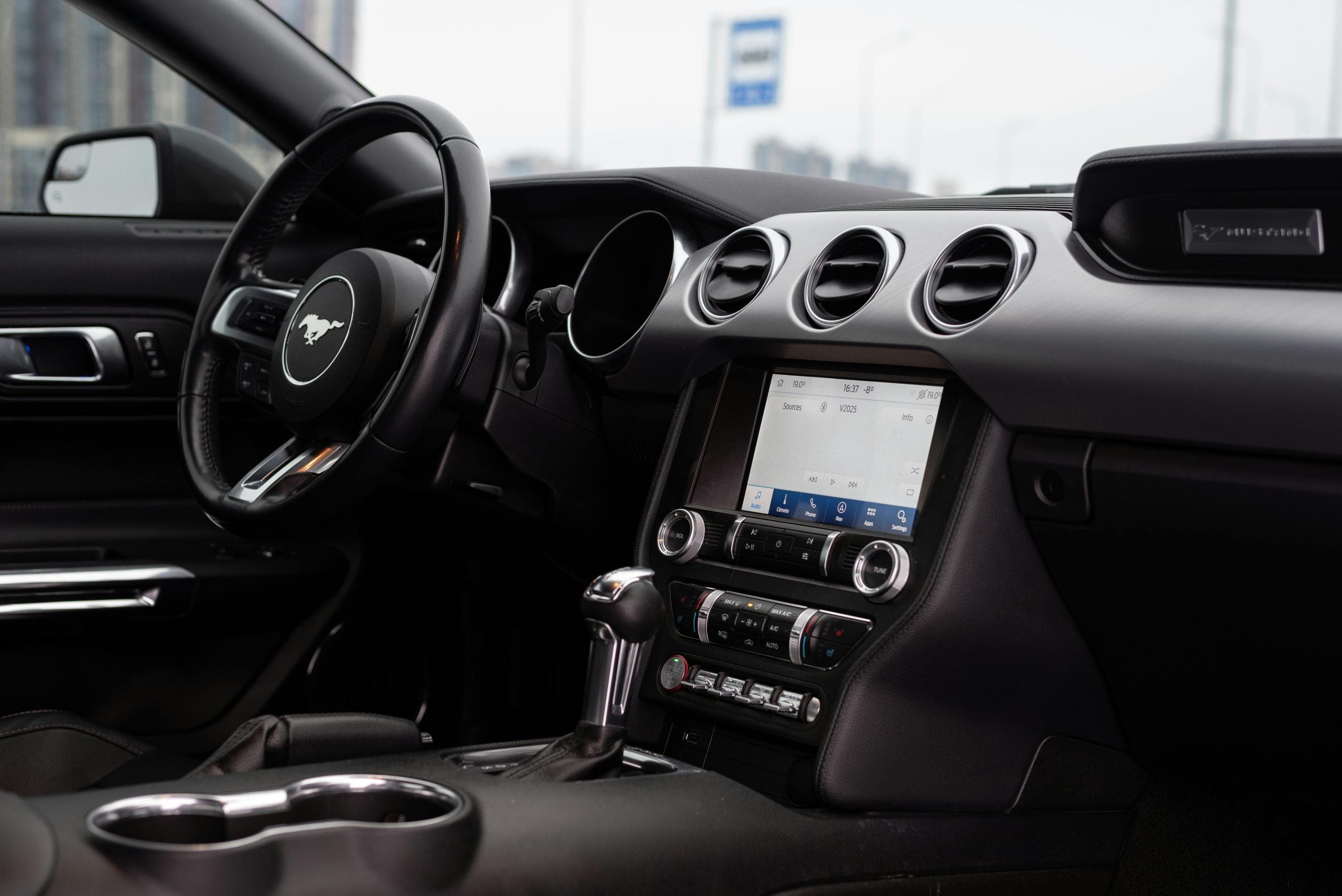
If you have the admin key, turning off your Ford's MyKey is easy. You can do it either through the SYNC display screen or the driver's information display. Both methods only take a few steps, but they do require the admin key.
Using the SYNC Display Screen (If You Have the Admin Key)
This is one of the quickest ways to clear your MyKey's settings:
- Start your vehicle with the admin key.
- Go to the SYNC menu and tap on “Settings.”
- Select “Vehicle,” then tap “MyKey.”
- Follow the on-screen instructions to clear the MyKey settings.
- Check for a confirmation message that should pop up once it's done.
- Turn off your vehicle to save the changes.
With that, your MyKey settings are erased, and all keys regain full functionality.
Using the Driver's Information Display (If You Have the Admin Key)
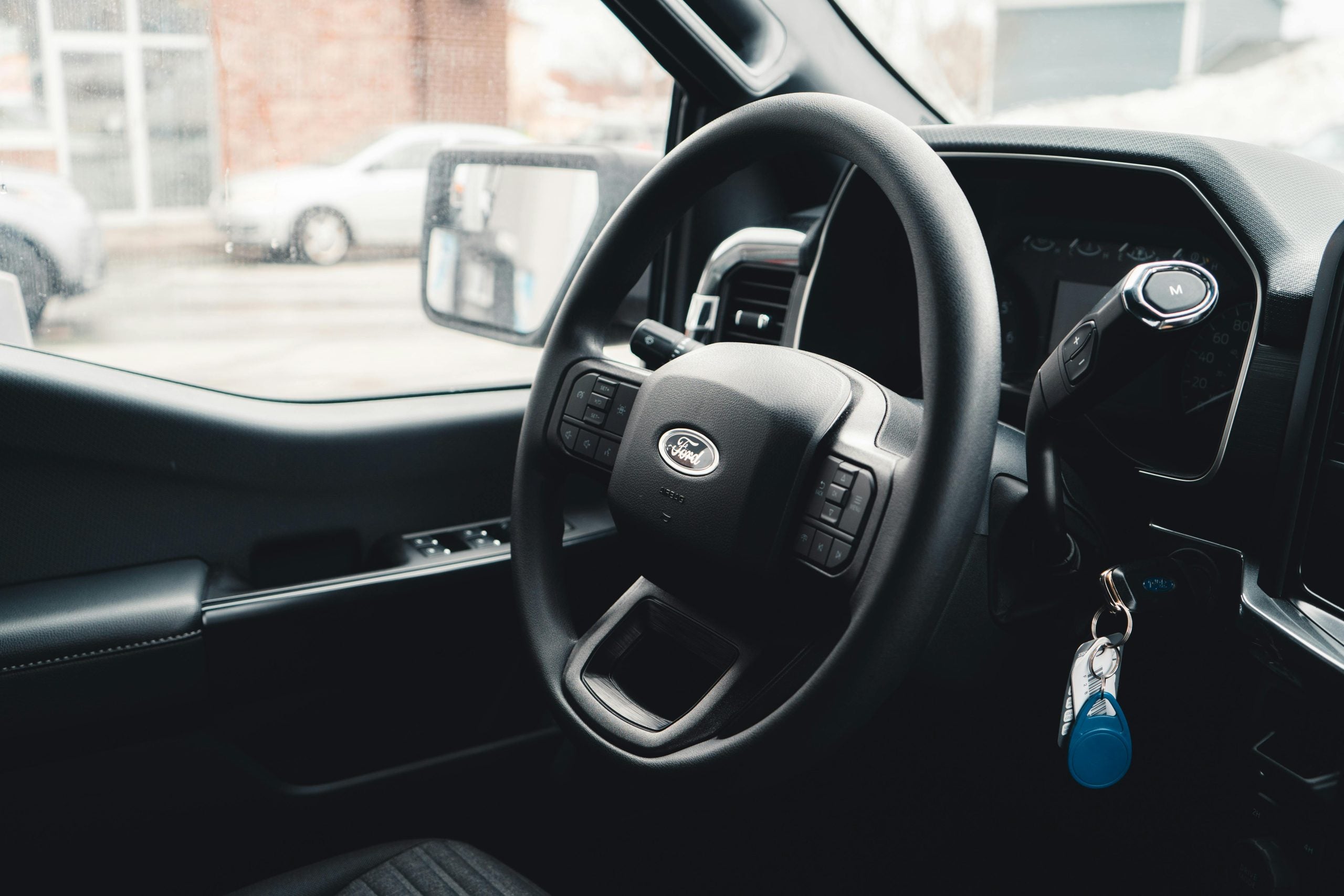
If your car doesn't have a SYNC touch screen or you prefer using the buttons on your steering wheel, you can disable MyKey through the dashboard menu. Here's how:
- Start your car with the admin key.
- Use the right arrow button on the steering wheel to open “Settings.”
- Scroll to “Vehicle Settings” and select “MyKey.”
- Choose “Clear MyKey” from the menu.
- Press and hold the OK button until you see a confirmation message.
- Turn off the vehicle to finalize the reset.
And just like that, MyKey's restrictions are gone.
Both methods are simple as long as you have the admin key. But if you don't, things get trickier. In the next section, we'll look at what you can do if you're stuck without one.
How To Turn Off MyKey Ford Without the Admin Key
Losing your Ford's admin key can be annoying, especially if MyKey is making it hard for you to drive your Ford the way you want. Ford doesn't officially allow you to remove MyKey without the admin key, but there are a couple of ways around it. Here's how to reset Ford MyKey without the admin key.
Using Remote Start To Get Past MyKey
If your Ford has remote start, you can use it to bypass MyKey for a while:
- Start the Ford with the remote, but don't open any doors or change gears.
- Go to the SYNC screen or driver's display while the engine is running and try clearing the MyKey settings.
- Check if you're successful and the restricted key has become an admin key.
That being said, this workaround is not officially recognized by Ford and should be attempted at your own risk. Dealerships will not be responsible for any issues that may arise.
Masking the MyKey RFID Code
This trick makes your car think the restricted key isn't present:
- Wrap the MyKey in aluminum foil or move it 20 feet away.
- Open and close the door to get a “No Key Detected” message.
- Unwrap your key and hold it close to the transponder reader, which is usually on the steering column.
- Turn off the ignition, then turn it back on, and see if you can reset your MyKey.
If that doesn't work, you can reset the Passive Antitheft System (PATS) to clear all MyKey settings. You need two working keys and some programming tools for PATS, which you can get from a dealership or locksmith. This hack will reset everything and remove any limits.
Another way to disable MyKey is through the instrument panel. Some car models allow you to change MyKey settings this way. Just go to “Vehicle Settings,” select “MyKey,” and turn off any restrictions you see. It might not get rid of everything, but it can help lessen limits such as chimes.
Fix Your Admin Key at John Kennedy Ford Feasterville
Dealing with your Ford's MyKey restrictions can be a hassle, but these tricks might help you regain control. If you're still stuck, John Kennedy Ford Feasterville has your back. Stop by our service center or schedule an appointment. While you're here, you can check out our latest Ford lineup.